 Present Mode for Jira
Jira issues, ready for the shared screen
Present a work item, a sprint, the backlog or any JQL search in meetings – a clean view with the fields you choose, zoomed so everyone can read it.
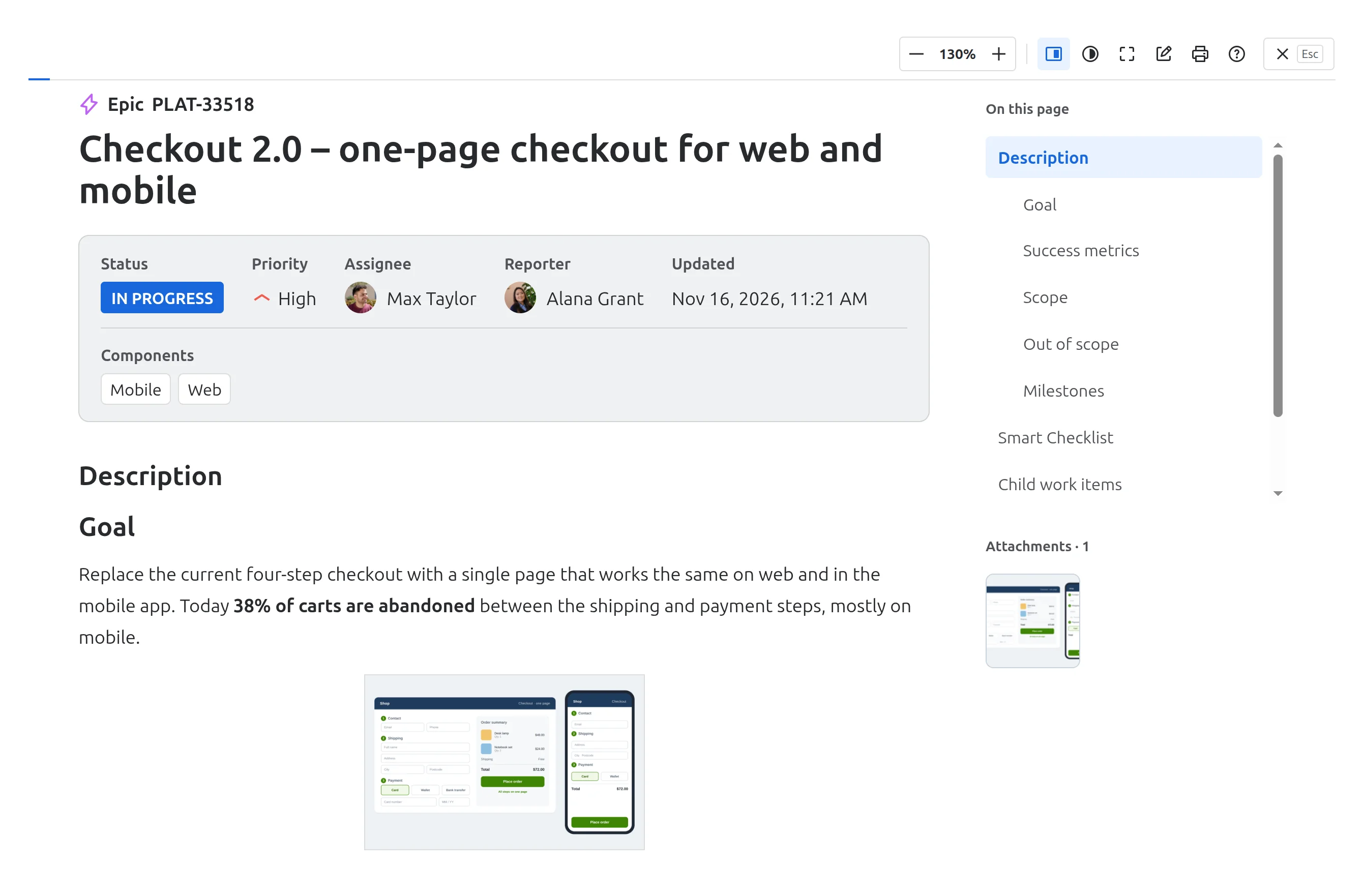
issue-view.webp
Sharing a Jira issue in a meeting means sharing everything around it – menus, side panels and other apps' buttons. Zooming in the browser makes all of that bigger too. Present Mode shows just the work item in a clean layout of its own, with Jira's look and formatting, zoomed for the shared screen.
Everything the meeting needs, nothing it doesn't
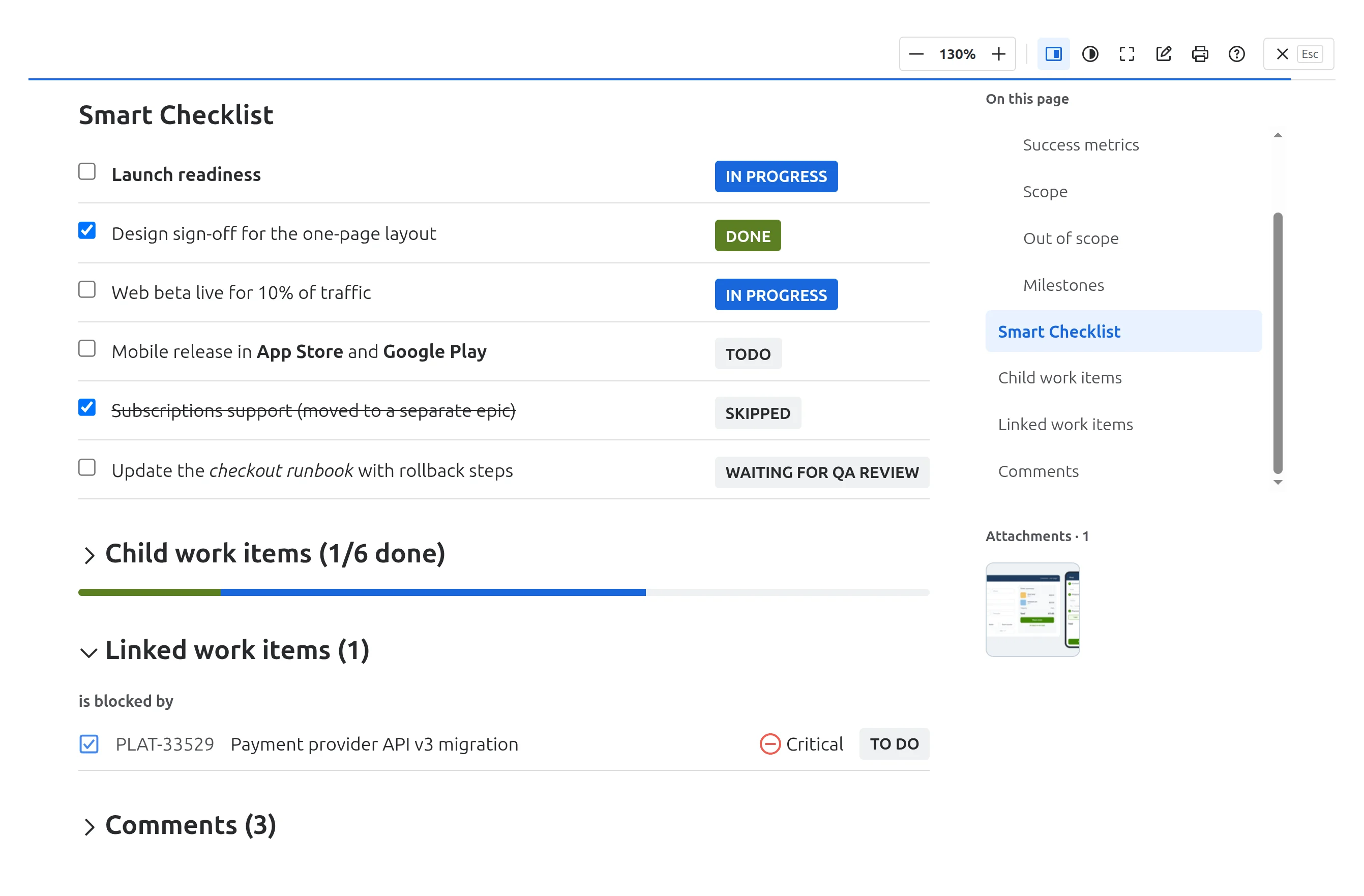
Open a work item without Jira's menus and side panels: the description with its images and tables, the fields you choose, and sections in your order – child work items and subtasks with progress, linked work items grouped by how they're linked, and rich-text fields such as Environment or your acceptance criteria.
- Using the Smart Checklist app? Add its checklist as a section – items and statuses, read-only
- Comments stay collapsed until you show them
- On this page lists the headings, sections and comments – jump between them with J and K
issue-content.webp
Walk through a sprint without clicking around
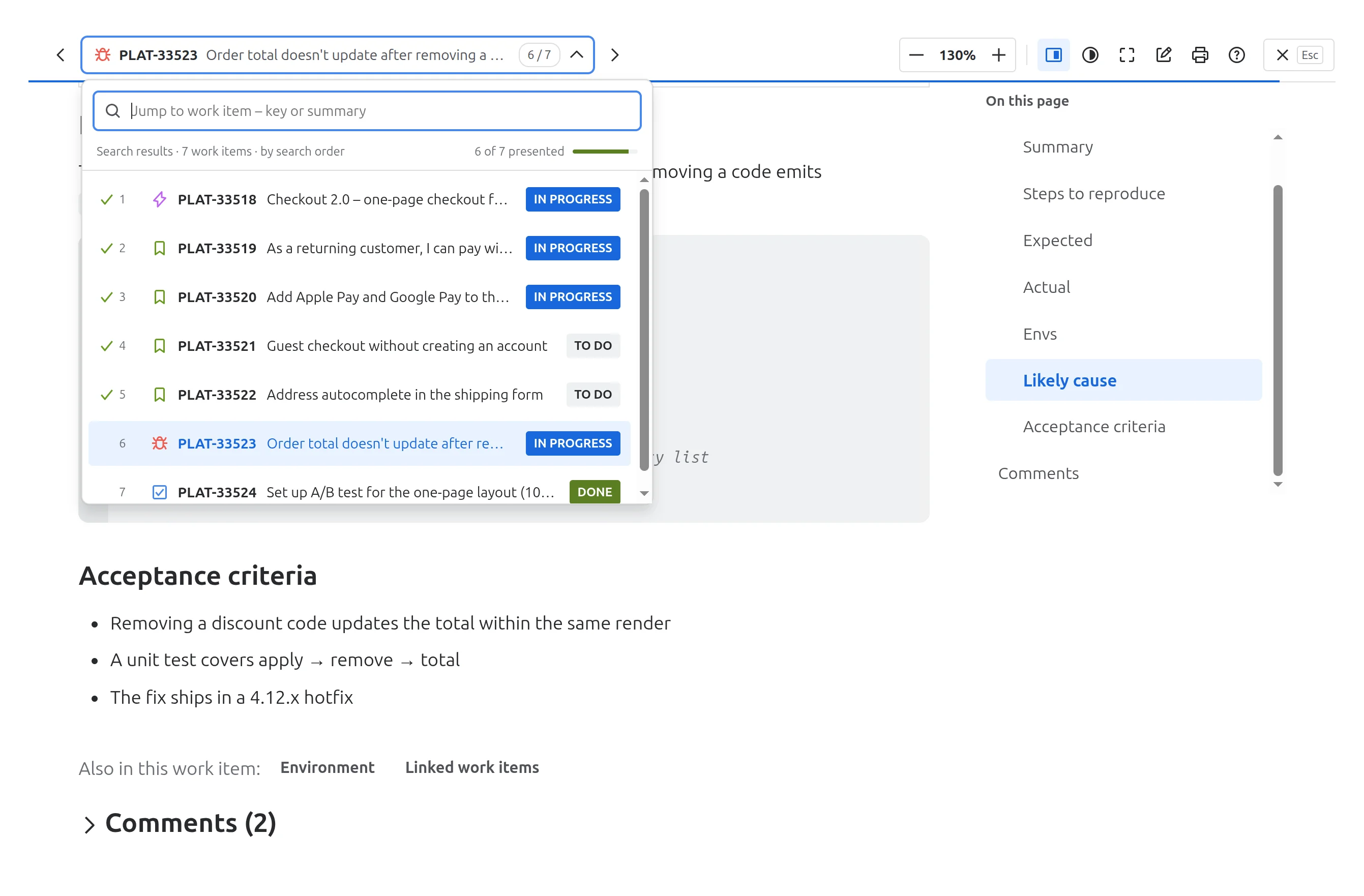
Present a sprint, the backlog, a board, a filter or any JQL search and move with the arrow keys, PageDown or a presenter remote. The next work items load ahead, so switching is quick.
- Jump to any work item by its key or summary
- See which work items the meeting has already covered
issue-list.webp
Arrange it for your meeting
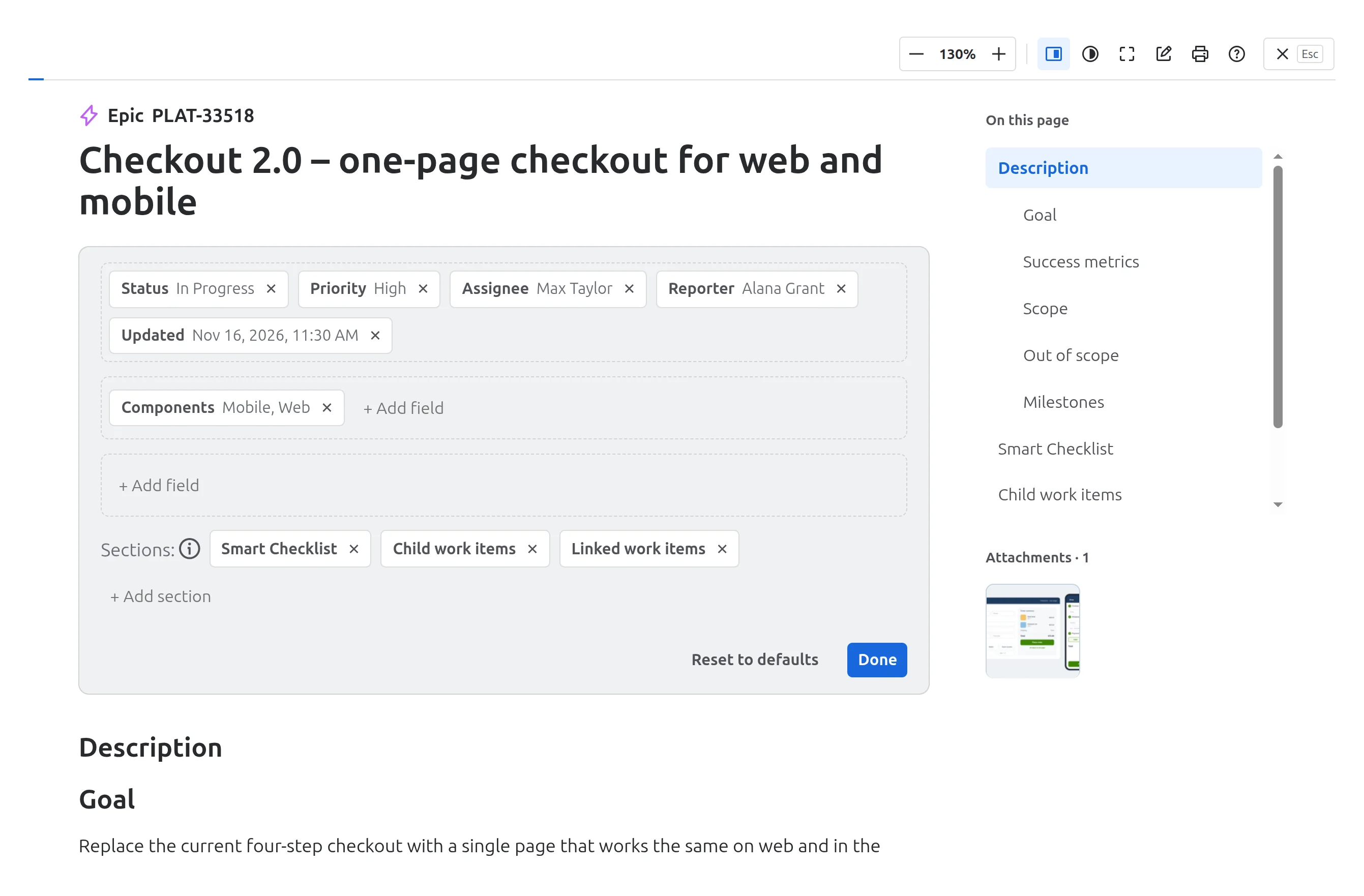
Choose the fields and sections once for each project and work type – they'll be there for your next meeting. Zoom from 100 to 200%, go full screen, switch between dark and light.
- Edit a work item in Jira's own view without leaving the presentation, and see the change as soon as you close it
- Print one work item or the whole list, or save it as a PDF
- In English or Polish, following your Jira language
fields.webp
Everyone sees only what Jira shows them
Present Mode reads work items in your browser, as you, so it shows only what you can already see in Jira. It has no backend, makes no connections outside Atlassian and stores no work item data – only your field and section layout, in your own browser.
Read the security policyPresent in three steps
-
01
Choose Present
In the ••• menu of a work item, a board, the backlog or a sprint, or in the Apps menu of the work item search.
-
02
Share your screen
Press F for full screen and + or − for the text size. Show the comments with C when you need them.
-
03
Move through the work items
Arrow keys, PageDown or a presenter remote. Press L to jump to any work item on the list.