User Guide
Blobify – Cloud Attachments for Jira
Blobify stores your Jira issue attachments in your own cloud object storage — Azure Blob Storage or any S3-compatible provider — instead of in Jira. Files move directly between the browser and your storage over short-lived signed links.
How it works
- Your storage, your data. Attachments live in a storage account/bucket you own and control. Blobify only stores lightweight metadata (file name, size, type, who uploaded it, and the storage path) on the Jira issue.
- Direct browser transfer. On upload or download, Blobify generates a temporary signed link and the browser transfers the file directly to your storage. The bytes never pass through Atlassian's servers — and there's no separate Blobify server for them to pass through either.
- Runs on Atlassian Forge. Blobify is built entirely on Atlassian Forge; the app's code runs inside Atlassian's own cloud infrastructure. There is no separate Blobify server to trust.
- Credentials stay encrypted — and can't be read back. Your storage keys are saved encrypted in Atlassian's dedicated Jira secret storage. Once stored, no one can read them back — not you, not another admin, not the vendor. You can replace a key, but never view the stored value again.
Security & data protection
Blobify is designed so that the most sensitive things — your file contents and your storage credentials — are never exposed to a third party.
- Files never pass through a server. Uploads and downloads happen directly between the browser and your storage over short-lived signed links. The file bytes never touch Atlassian or the vendor, and there is no separate Blobify server for them to pass through.
- Runs entirely on Atlassian Forge. The app's code runs inside Atlassian's own cloud infrastructure — there are no external servers to manage, trust, or secure. Even the signed links are generated within Atlassian.
- Credentials are encrypted and can't be read back. Your storage keys are held in Atlassian's dedicated Jira secret storage, encrypted at rest and in transit. Once saved, no one can reveal them — not you, not another admin, not the vendor; a saved key shows as
••••••••and can only be replaced. - Only metadata is stored — in Atlassian. Blobify keeps just the file name, size, type, uploader, and storage path (in Jira issue properties and Forge storage). Your file contents live only in your own bucket.
- Access is permission-aware. Upload, download, and delete are checked against Jira's permission model server-side (never trusting the browser). Comment links re-verify the viewer's browse permission every time they're clicked — they're not public URLs.
- Data residency. App data at rest lives in Atlassian Forge storage (in scope for Atlassian's data residency); your file contents reside in the region you choose at your storage provider.
For the full detail on what personal data Blobify processes, where it is stored, and how long it is kept, see the Blobify – Cloud Attachments for Jira Privacy Policy. For our security architecture, vulnerability management, and incident response, see the Security Policy.
Supported storage vendors
Blobify works with Azure Blob Storage and any S3-compatible object storage. These vendors are supported out of the box:
| Vendor | Key fields you enter | Credentials |
|---|---|---|
| Azure Blob Storage | Storage account name + container | Storage account key |
| Amazon S3 | Bucket + Region (e.g. us-east-1) | Access key ID + secret |
| DigitalOcean Spaces | Bucket + Region (e.g. nyc3) | Access key ID + secret |
| Backblaze B2 | Bucket + Region (e.g. us-west-004) | Key ID + application key |
| Wasabi | Bucket + Region | Access key ID + secret |
| Cloudflare R2 | Bucket + Account ID (Region field is relabeled) | Access key ID + secret |
| OVHcloud Object Storage | Bucket + Region (e.g. gra) | Access key ID + secret |
| Google Cloud Storage | Bucket + Location (informational) | HMAC key (ID + secret) |
| Custom S3-compatible | Endpoint + Bucket (+ optional Region) | Access key ID + secret |
Before you start
You need:
- Jira Cloud site-administrator access to install and configure the app.
- A cloud storage account with one of the supported vendors above.
- A container (Azure) or bucket (S3) to hold the attachments.
- Permission to edit the storage account's CORS settings — required for browser uploads and downloads to work.
Administrator setup
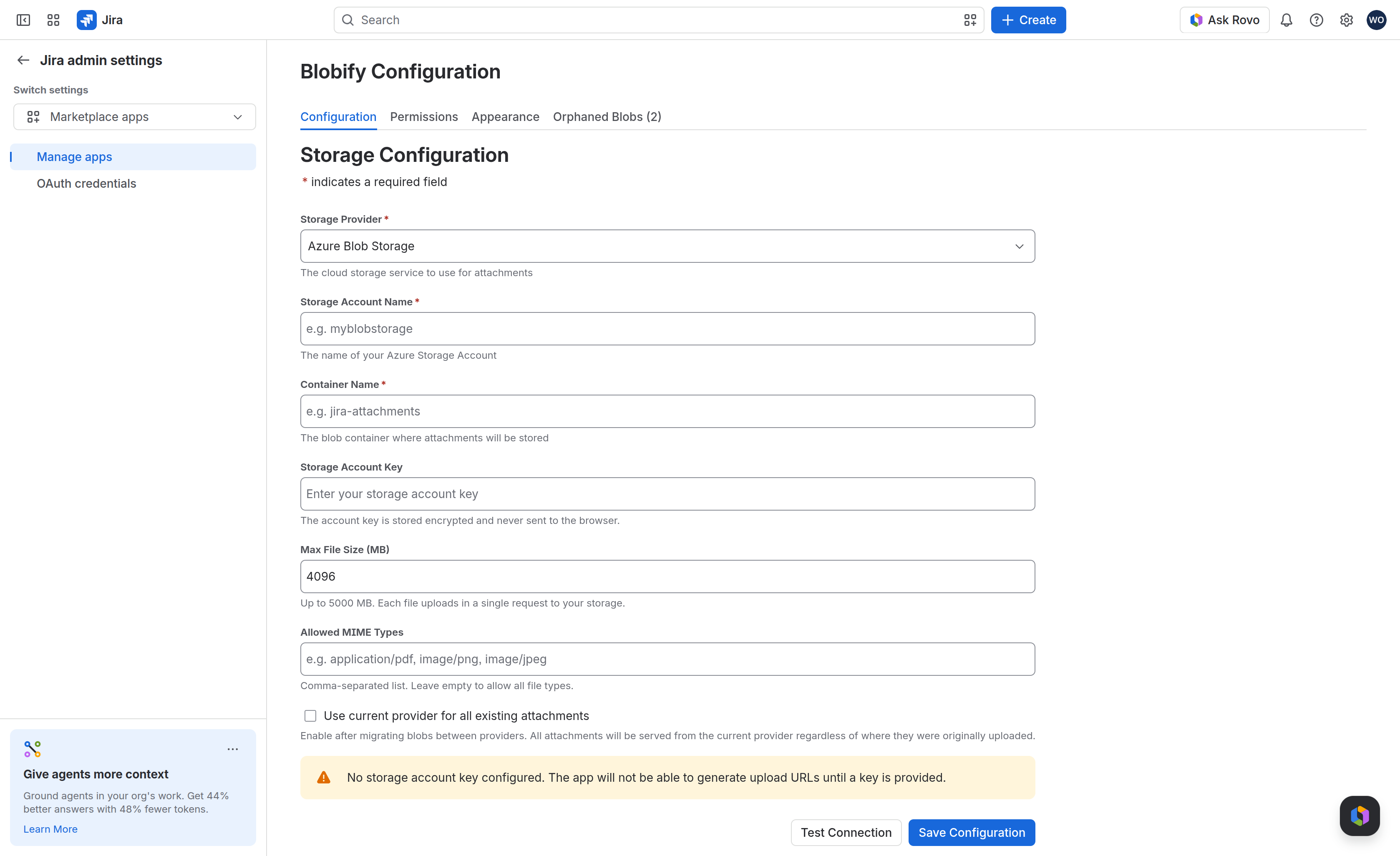
Open the admin page from Settings → Marketplace apps → Blobify – Cloud Attachments for Jira → Configure. It has four tabs: Configuration, Permissions, Appearance, and Orphaned Blobs.
1. Configure storage
On the Configuration tab, pick your provider from the Storage Provider dropdown; the fields adapt to your choice (account name + container for Azure; bucket + region + access key pair for S3). Optional settings: Max File Size (default 2 GB) and an Allowed MIME Types allow-list (leave empty to allow all).
2. Configure CORS on your storage (required)
Because the browser talks to your storage directly, your account/bucket must allow cross-origin requests from Jira:
- Origins:
https://*.atlassian.net(addhttps://*.atlassian-dev.netfor a dev/sandbox site). - Methods:
GET,PUT,DELETE(plusOPTIONSfor preflight where applicable). - Headers: all (
*). Max age:3600.
The standard S3 CORS JSON, usable with most providers:
[
  {
    "AllowedOrigins": ["https://*.atlassian.net"],
    "AllowedMethods": ["GET", "PUT", "DELETE"],
    "AllowedHeaders": ["*"],
    "ExposeHeaders": [],
    "MaxAgeSeconds": 3600
  }
]3. Test the connection
Click Test Connection — Blobify generates a short-lived signed request and the browser calls your storage to verify the settings (no need to save first). The most common failure is missing/incorrect CORS or wrong credentials.
4. Choose a permission mode
On the Permissions tab:
- Use Jira attachment permissions (default) — respects Jira's native Create / Delete own / Delete all attachments. If users can add normal attachments, they can use Blobify with no extra setup.
- Use Blobify permissions — three dedicated project permissions to control Blobify independently, granted in the permission scheme (company-managed projects) or under Project settings → Access / roles (team-managed). Remember to grant them, or users can't upload.
5. Appearance & customer portal
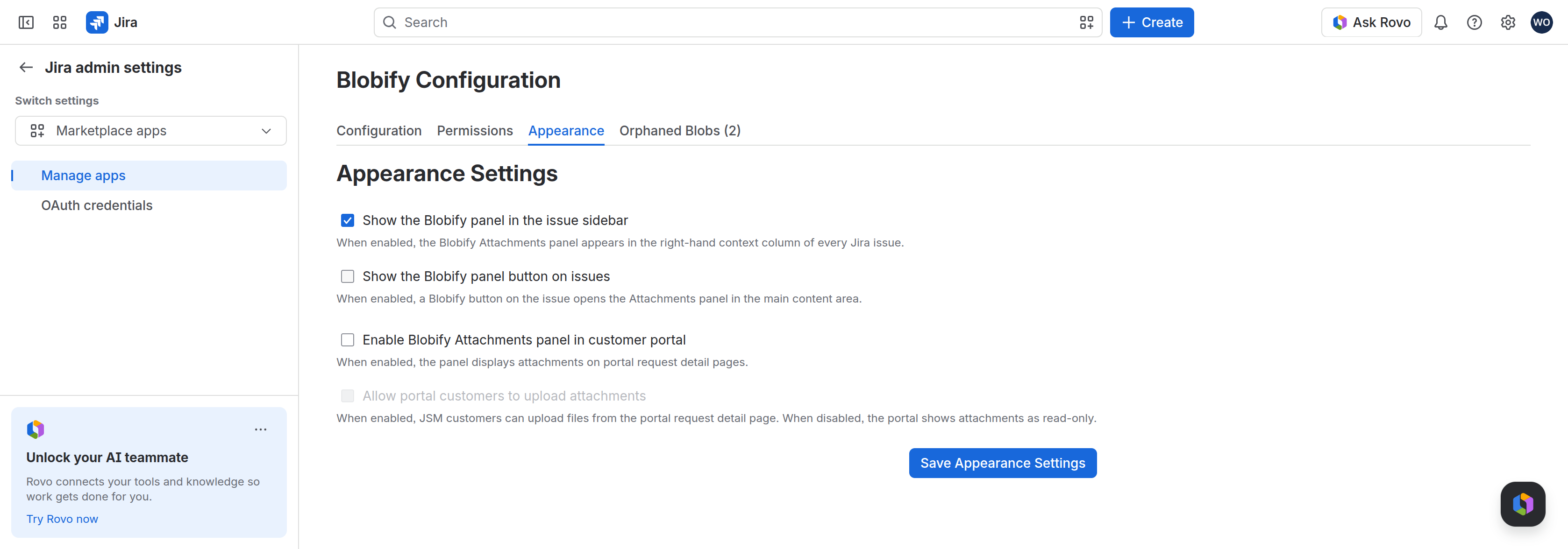
On the Appearance tab, choose where the panel appears: the issue sidebar (on by default) and/or an issue-panel button (off by default). For Jira Service Management, you can enable the panel on the customer portal (off by default) and optionally allow portal customers to upload — customers can never delete.
Using Blobify
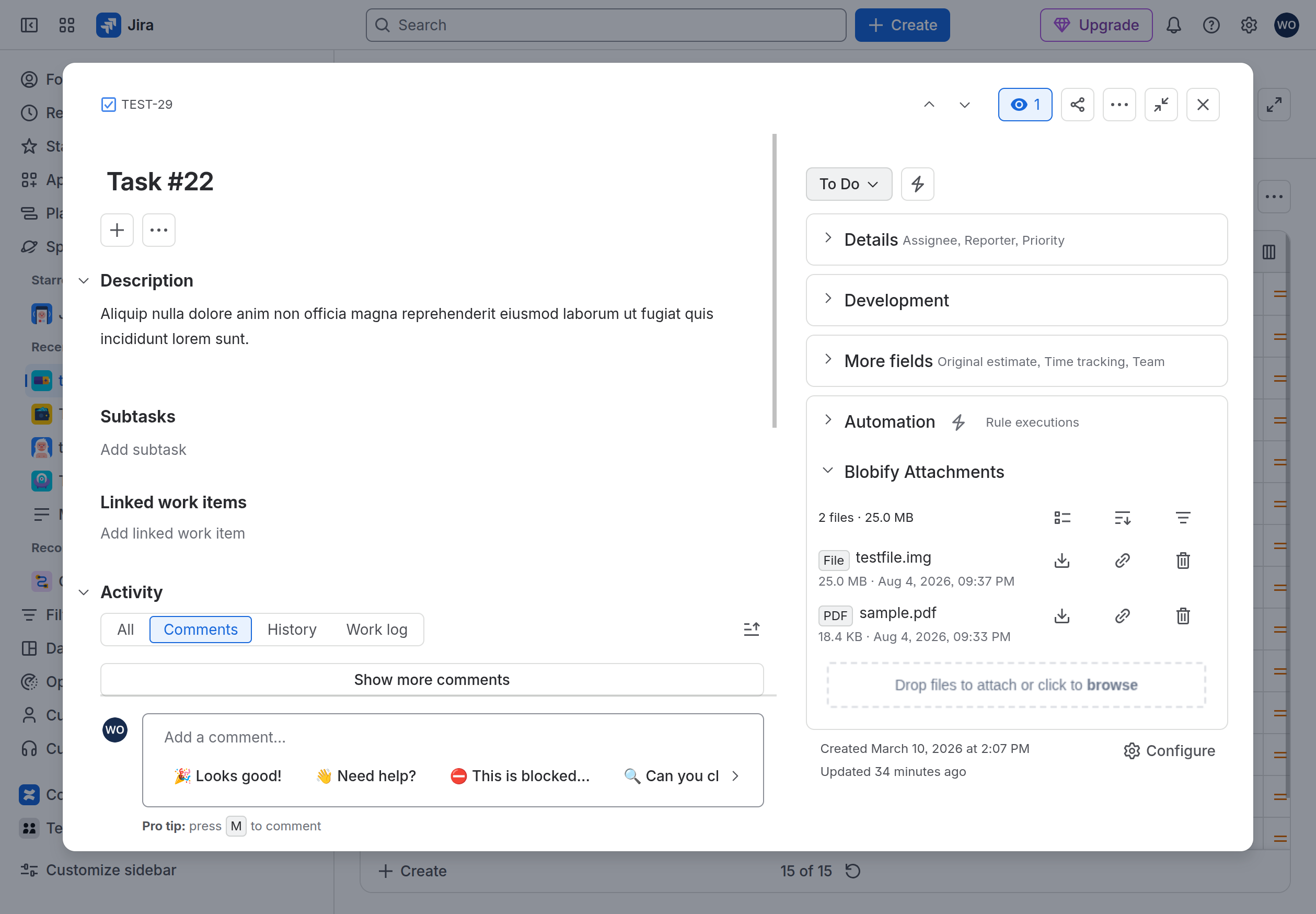
Once configured, the Blobify Attachments panel appears on Jira issues (per your Appearance settings):
- Upload — drag files onto the drop zone (or click to browse). Uploads respect the max size and allowed types.
- Download — click the download icon; the file is fetched directly from your storage.
- Delete — click the trash icon and confirm (subject to your permissions). The file is permanently removed from your storage.
- Select several — enter select mode from the toolbar to download several attachments as one zip, or delete several at once (see below).
- Link in a comment — click the link icon to generate a permission-aware link you can paste into any Jira comment or description.
Selecting multiple files (bulk download & delete)
Click Select in the panel toolbar to act on several attachments at once — tick individual rows, or use the checkbox menu for All / This page / None. Then choose a bulk action:
- Download selected as zip — Blobify fetches the chosen files directly from your storage and packs them into a single
.zipin your browser; you never leave the issue. Each file goes into its own{ISSUE-KEY}/{file-id}/folder inside the archive, so two files with the same name never overwrite each other. Very large selections are guarded — Blobify warns on big batches and blocks ones too large to zip in the browser. - Delete selected — removes the chosen files after one confirmation; only files you're allowed to delete are affected.
Anyone who can download can multi-select and zip; Delete selected needs delete rights. Bulk download isn't available on the customer portal.
Linking an attachment in a comment
Blobify files aren't native Jira attachments, so they can't be @-mentioned. Instead, click the link icon, select the link in the dialog and copy it, then paste it into a comment. Clicking it opens a short download page that re-checks the viewer's permission to see the issue, then downloads automatically. The link is permission-aware — not a public URL.
Finding attachments with JQL
Blobify indexes attachment metadata on each issue, so you can search with plain JQL — in issue search, filters, boards, and dashboard gadgets. Four fields are searchable:
| Field | Holds | Example |
|---|---|---|
blobifyAttachmentCount | Number of Blobify files | blobifyAttachmentCount > 0 |
blobifyTotalSize | Combined size, in bytes | blobifyTotalSize > 10000000 |
blobifyFileName | Filenames (text search) | blobifyFileName ~ "invoice" |
blobifyLastUploadedBy | Who added the most recent file | blobifyLastUploadedBy = currentUser() |
The index updates automatically as files are uploaded or deleted (with the usual brief Jira indexing delay). These fields cover only Blobify attachments; Jira's built-in attachments field is separate.
Managing orphaned blobs
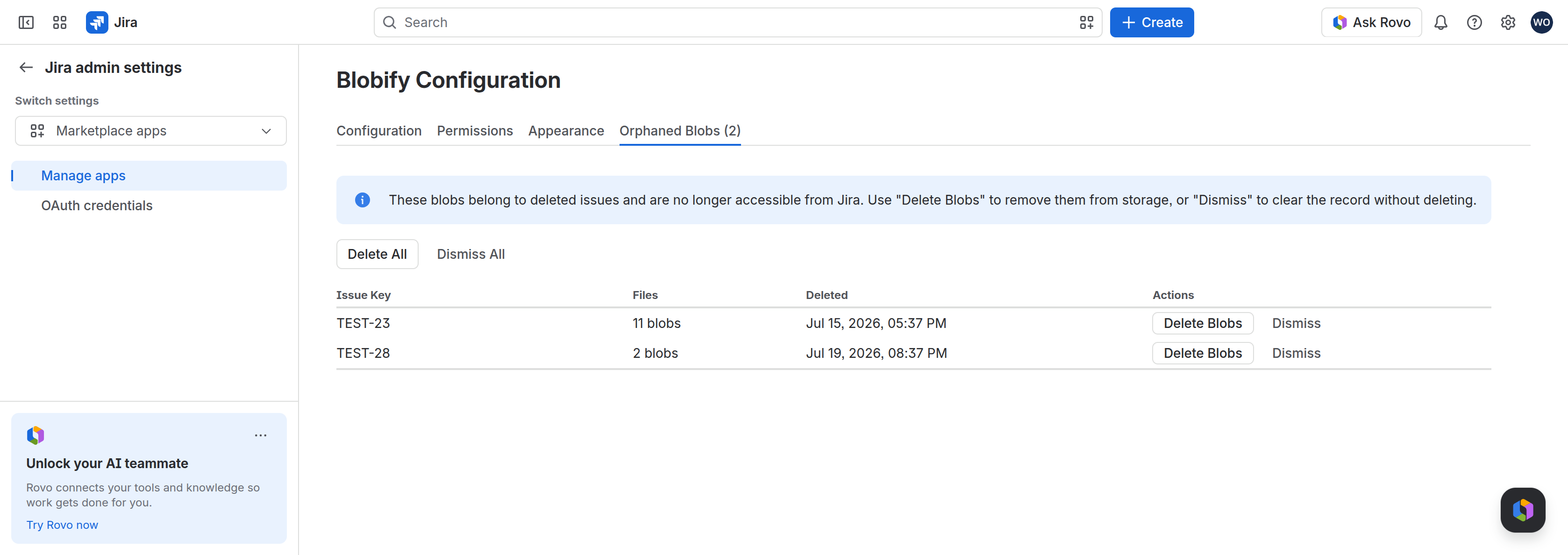
When a Jira issue with Blobify attachments is deleted, the files remain in your storage (Jira can't reach into your bucket to clean them up). Blobify tracks these as orphaned blobs. On the Orphaned Blobs tab you can see each deleted issue's key, file count, and deletion time, then Delete Blobs (remove from storage), Dismiss (clear the record but keep the files), or act on all at once.
Known limitations
Immutable storage (WORM retention) and archive tiers
Because Blobify signs storage URLs without ever seeing the file bytes, a few retention and archival settings on your storage interact with it in ways worth knowing about:
- WORM retention on uploads (AWS S3). An AWS S3 bucket with a default Object Lock retention period requires an integrity value (
Content-MD5or a checksum) on every write. Because Blobify signs the upload URL without ever seeing the file, it can't supply that value, so those uploads are rejected. With Object Lock but no default retention (per-object mode), uploads succeed — but the objects are written with no retention applied, so they aren't actually WORM-protected. Either way, Blobify can't reliably enforce Object Lock on AWS S3. Azure imposes no such requirement, so uploads to a retention-enabled Azure container succeed and the retention does apply. Other S3-compatible providers — including Google Cloud Storage via its S3 API — also support Object Lock but are untested here; don't assume upload-time WORM works until you've verified it. - Retention on deletes (all providers). A file held by S3 Object Lock, an Azure retention policy, a Google Cloud Storage retention policy or object hold, or a legal hold cannot be deleted until the retention expires or the hold is released. In-app delete and automatic orphan cleanup will fail for such files until they are eligible for deletion.
- Offline archive tiers on downloads (S3 and Azure only). A lifecycle rule that moves a file to an offline class — Amazon S3 Glacier Flexible Retrieval or Glacier Deep Archive, or the Azure Archive tier — blocks download until you restore/rehydrate it in your storage provider (minutes to hours); until then, download returns an error. Every online storage class downloads normally.
Licensing and trial
- Trial — all features work; admins see a reminder banner as the trial nears its end.
- Inactive / expired license — attachments stay listed (names, sizes, dates), but can't be opened, uploaded, or deleted from within Jira.
- Your files are never locked away. They live in your own storage, so even with an expired license you can access, download, or move them directly through your storage provider — independent of Blobify or Jira.
- Restore full access by adding or renewing a subscription on the Atlassian Marketplace.
Troubleshooting
| Symptom | Likely cause & fix |
|---|---|
| Test Connection fails | CORS not configured (or missing GET), wrong credentials, or wrong account/bucket/region. |
| Download shows an error | The signed link couldn't be authorized — usually changed/invalid credentials. Ensure CORS allows GET so the error shows in-app. |
| Upload fails | File exceeds max size, type not in the allow-list, CORS missing PUT, or the user lacks upload permission. |
| Custom endpoint: all uploads/downloads blocked | The endpoint domain isn't approved. On the Configuration tab confirm it shows "domain is approved"; if not, Save again and accept the consent prompt. |
| Panel doesn't appear on issues | Check the Appearance tab — the relevant surface may be disabled. |
FAQ
Where are my files actually stored?
In your own cloud storage account/bucket. Blobify never copies them to Atlassian or to the vendor.
How are files organized in my storage?
Under a predictable path {cloudId}/{issueId}/{uuid}/{fileName} — the cloudId keeps multiple sites from colliding, issueId groups files per issue, and the per-upload uuid means two files with the same name never overwrite each other.
How large can an attachment be?
Your Jira admin sets the per-file size limit in Blobify's settings, and it can be larger than Jira's own 2 GB attachment cap. Each file uploads in a single direct request to your storage, so the practical ceiling is your provider's single-upload limit — around 5 GB on Amazon S3, Azure Blob Storage, and most S3-compatible providers.
Do files pass through Atlassian or a Blobify server?
No. Uploads and downloads go directly between the browser and your storage over short-lived signed links. Blobify runs entirely on Atlassian Forge — there is no separate Blobify server, and it only ever handles lightweight metadata, never the files.
Can I lock my storage down to specific IP addresses?
Yes. Because files move directly between the browser and your storage — Blobify and Atlassian Forge never connect to it — you only need to allow the IP ranges your users browse from (for example your corporate network or VPN egress IPs). There is no Atlassian or Forge IP range to allowlist, because nothing on our side ever reaches your storage — even Test Connection runs from the admin's browser. Note this also restricts where attachments can be used: a user off the allowed network (home, mobile) can't upload or download until they're back on it, e.g. via VPN.
Are my storage credentials safe?
Yes. They're saved encrypted in Atlassian's dedicated Jira secret storage and can never be read back — not by you, another admin, or the vendor. A saved key shows as •••••••• and can only be replaced.
Why don't I see the upload area on an issue?
It's almost always permissions. Blobify only shows the upload area to people who can add attachments, so ask your Jira admin to grant you that permission on the project — in a company-managed project via the permission scheme, in a team-managed one via Project settings → Access (roles). Depending on the mode, that's Jira's Create Attachments permission or the Blobify: Upload attachments permission.